Matter of Chance Productions
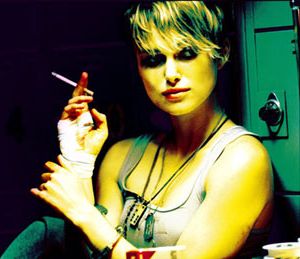
This thread on the Panasonic 3CCD User sparked my interest and I set out to try to recreate the radical high-contrast saturated look of the Tony Scott film Domino.
I had read an article about Domino in the November 2005 issue of American Cinematographer magazine. At the time I was struck by the images, which glowed with vibrant greens, yellows, and reds. So, I went back and reviewed the article.
Reversal Film - Much of the film was shot on reversal film stock (Kodak Ektachrome 100D 5285). Reversal film stock is the opposite of regular negative film stock. It actually exposes a positive image that can be projected immediately after processing with creating a positive print. While negative film has evolved to produce a very natural and accurate image, reversal film has always had some unique rendering properties, in this case really accentuating greens and reds.
Cross-Processing - To further push the extreme look, the reversal film was cross-processed. Cross-processing involves processing a film stock with a procedure and solution intended for a different type of films. The result is often radical and unpredictable.
Of course, there is much more to the look. High-contrast lighting and exposure, along with other processing techniques. Not to be discounted is the productions design, the aspects of what is actally put in front of the lens.
With all of these things in mind, I pulled up some footage from a film I am working on at the moment, Days of Being Wrinkle Free. Wrinkle Free is an impressionist little film that takes place in a laundromat. It was shot nearly on a whim, with very little dialog and only an outline of a voiceover track to be added later. It was shot one night in about an hour and a half. No lighting was used at all, and the flourescent lights and gray walls tended to produce a rather flat an uninteresting look. In the actual color correction for the film, I carefully applied a number of Curves filters to give a more pleasing contrast to the image and saturate the colors slightly. Still, I left the image rather plain. If I could take these images and get them anywhere near the Domino look, it would be an accomplishment.
I examined the stills in the AC article and formulated a plan. There were blown out highlights, any non-important shadows were crushed to black. In between, the midtones were bright yellow with saturated green shadows below. Here and there were punches of other saturated colors: a red box of cigarettes, a blue number on a locker. I would need to start by adjusting contast, then really work color curves into place, and finally hit it with a kick of saturation.
Created a new project in After Effects, and set the Project Properties to 16 bits per color channel. We'll be radically pushing the colors around, and 16 bit color will provide a smoother image. I imported my footage and made sure it was correctly interpreted, in this case NTSC 24p Widescreen. The film was originally shot on the GS400 in 60i. In my post workflow, I deinterlaced it to 30p using Magic Bullet, then slowed it down to 24p for an imperceptible slow-motion effect. When I color corrected, I used the DV Rebel's Guide ghetto deartfacting technique to smooth out colors, and it actually works better than any technique I have ever used, including Magic Bullet's built-in deartfacting. As previously mentioned, I tuned my contrast with a Curves filter, then increased Saturation across the board. I exported that as uncompressed DV, which is what I'm working with now. Had I not deartifacted, the colors might indeed start to really block up in this process, but as it was they survived rather well.
Here's my starting image (of Carl Provost, playing Captain):
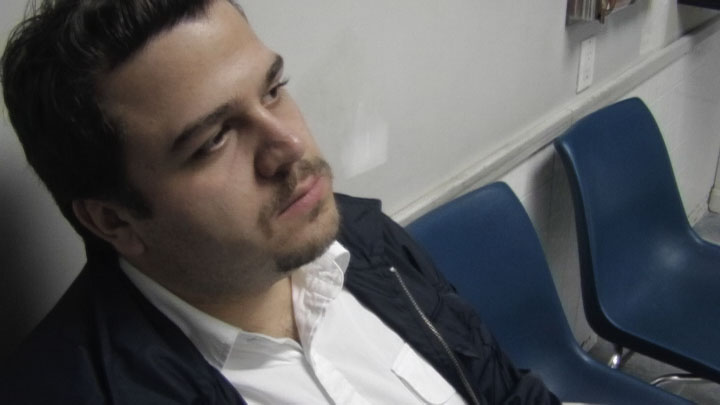
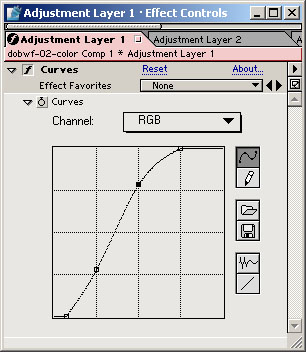
Normally we do everything possible to avoid overexposure and underexposure, and like to keep nice details in the highlights and shadows. However, in this case we want to get radical. I created a new Adjustment Layer over the footage and added a Curves filter. Set the Blending Mode on the Adjustment Layer to Luminosity. This will allow you to adjust contast without messing up the colors, since we're going to do that later, anyway.
In this case I completely crushed the bottom 25 shadow tones and clipped the top 64 highlight tones. I used a couple points in between to fine tune the midtones so the face would be exposed where I wanted it.
This is the main step where your process may vary a bit from mine. You'll need to adjust your contrast curve to fit your footage. Mine was rather flat to start with, so it required a radical curve. However, if you actually shoot with this look in mind, and use nice high-contrast lighting and photography, you won't have to push it so far, but will still want to crush a few shadows and clip a few highlights for good measure.
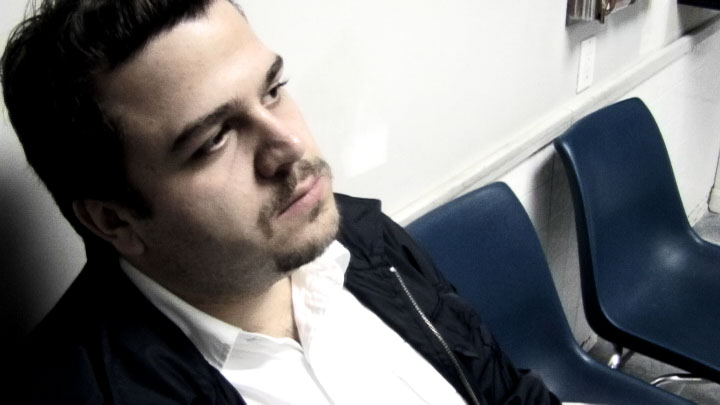
Create a new Adjustment Layer on top and add another Curves filter. Set the Blending Mode to Color this time, to effect the colors without affect brightness.
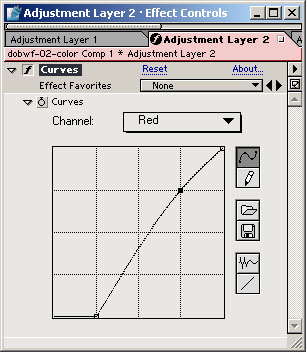
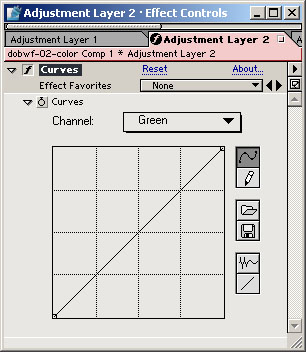
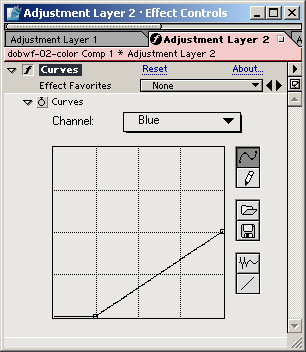
I did not touch the main RGB curve, but went straight for the individual color channels. We want green shadows. One way to do this is to increase the green channel shadows pulling it straight up, but this would eliminate all pure blacks and give us bright green shadows. Instead, I adjusted the red and blue channels, crushing the bottom 64 shadow tones in each to achieve the green shadows. To get the yellow highlights and midtones, simply pull the blue highlights down. I pulled them down all the way to the midpoint. You can see that the red channel has been slightly altered, the green channel completely untouched, and the blue channel has really been destroyed. If you think that blues don't have much of a shot in this color scheme, you're right!
The final step is to fine-tune the Saturation. This time create yet another new Adjustment Layer and add a Saturation filter. You can leave the Blending Mode on Normal this time.
In this step, set Master saturation to +10, a modest bump. Then, bump the Red saturation up another +10. This will help give any Reds in the scene a kick and set them off from to yellows and greens. It's tough for any blues to make it through, but if you do have a primary color bright blue object, it will survive, and you can bump up the blues in this step to make it pop.
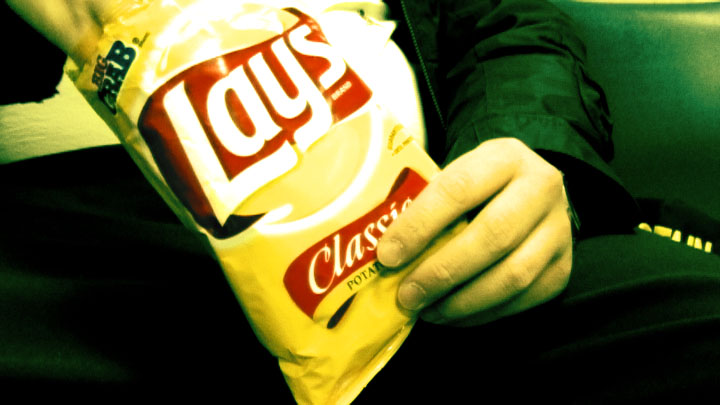
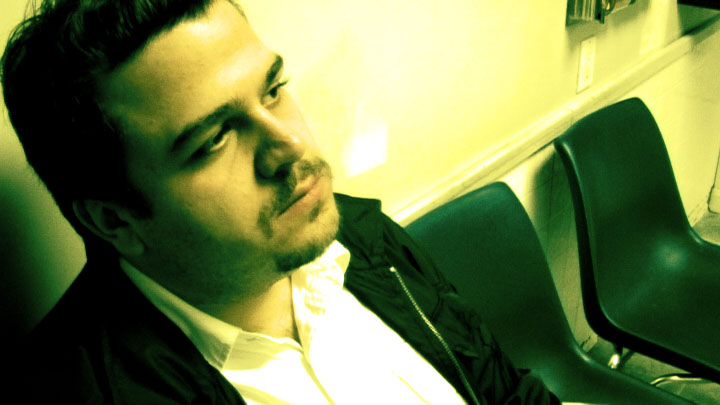
Unfortunately, there aren't really any reds in this image, but there are additional before and after images below, so you can see what Reds look like.
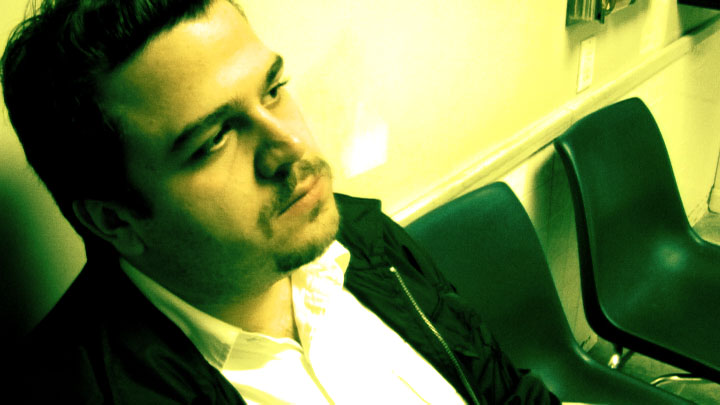
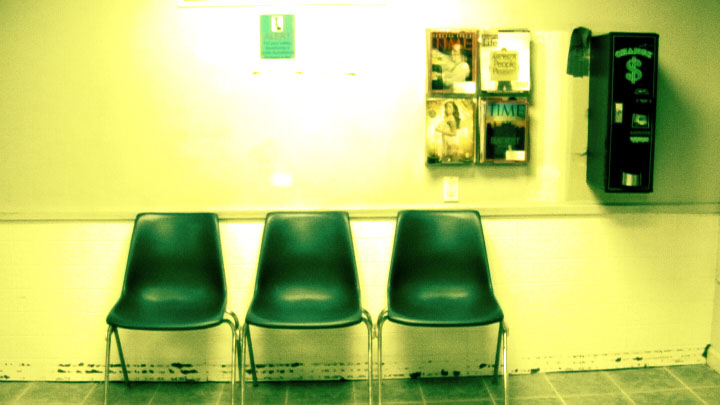
So, that's it. Hopefully, it compares fairly well to the original. Perhaps the yellow could lean a bit more toward orange and the greens towards teal, but that can be your homework. Feel free to fine tune to your liking. If you want a different color pallette altogether, it can be achieved by using different color curves. Just find a good reference image to work from and study it.
If you like this tutorial, please check out my production company, Matter of Chance Productions. Look for our films in festivals near you, and on IFC MediaLab. If you have any questions, or want me to take a crack at some other looks, drop me a line at joshprovost@yahoo.com.
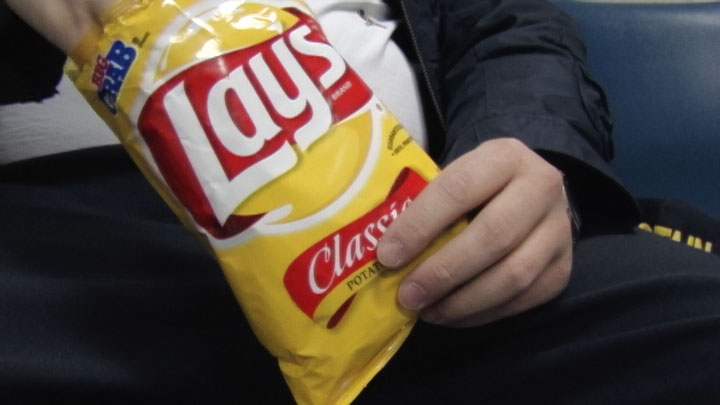
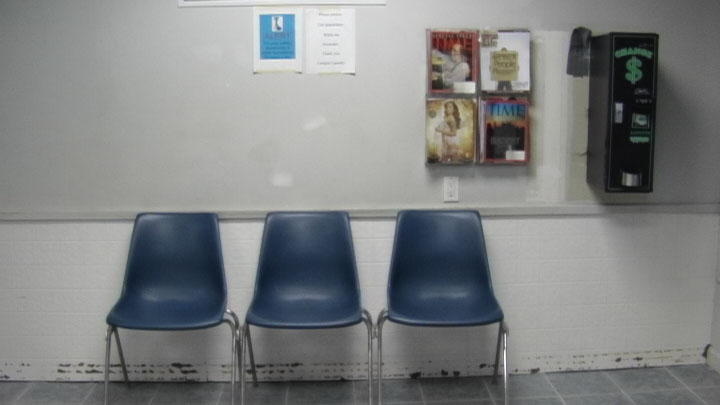
Here are some before and after stills to show you the look applied to different shots, including one with some strong reds.